Wordpress is a great blogging engine. It’s easy to get it up and running and there’s a lot of free themes available. But if you want to be a bit more creative and design your own theme or even use Wordpress as a CMS (content management system), this can be easily done. The recent redesign of my website has used Wordpress as a CMS. I’ve noted several useful tips and hacks that I came across while designing my theme that may come in useful.

Before using the snippets below you might want to start with the basics of designing your own theme. Check out these useful websites for step by step guides on designing your own themes and templates.

Referencing images in your theme

Referencing images in your stylesheet (style.css) are relative.

background:url(images/myimage.gif)

Referencing images in your html templates are absolute so use the template directory tag.

<img src="<?php bloginfo('template_directory'); ?>/images/myimage.gif" alt="" />

Full size images

Wordpress 2.6 resizes your images to 500px width, even when you tick the full width option, so there’s a hack to get around this. Go to /wp-includes/media.php on line 84 and comment that line (//)

// any other type: use the real image and constrain it
// list( $width, $height ) = image_constrain_size_for_editor( $meta['width'], $meta['height'], $size );

This way instead of <img class="..." src="..." alt="" width="..." height="..." /> you will get <img class="..." src="..." alt="" />
Thanks to parisoto for this hack.

Exclude specific categories

If you want to exclude or only include specific categories, e.g. you only want your portfolio page to include posts with the portfolio category, use query posts before your loop.

<?php query_posts('cat=-2'); ?>

This would remove the category with ID 2 from the list. You can get your category IDs by hovering or clicking on them in your admin area. I noticed this can cause a pagination problem though, so if you’re paginating use the code below.

<?php
$paged = (get_query_var('paged')) ? get_query_var('paged') : 1;
query_posts($query_string . "&cat=-2&paged=$paged");
?>

Unique category templates

Just name your template file category-ID.php and this will be a specific template for that category e.g. category-2.php

Unique category single page

In your single.php template do a check to see which category your post is in, then redirect it to another template for that category.

<?php
	if ( in_category('2') ) {
  include(TEMPLATEPATH . '/single-2.php');
	}else{
	include(TEMPLATEPATH . '/single-all.php');
	}
?>

Nice page titles

Put the name of the current page followed by a hyphen.

<?php wp_title(' - ',true,'right');?>Freelance Web Design

This would return something like “Portfolio - Freelance Web Design”

Fancy tags

Set up your tags list.

<?php the_tags('<ul class="tags clearfix"><li>', '</li><li>', '</li></ul>'); ?>

This produces similar to the following HTML.

<ul class="tags">
	<li><a rel="tag" href="http://www.leemunroe.com/tags/cms/">CMS</a></li>
</ul>

Then apply some CSS to style them as you like.

ul.tags{
list-style: none;
margin:0;
}

ul.tags li{
display: inline;
}

ul.tags li{
display:block;
float:left;
padding-left:12px;
background:url(images/tag.gif) left no-repeat;
margin:0 5px 5px 0;
}

ul.tags li a{
display:block;
float:left;
height:22px;
padding:3px 12px 0 0;
background:url(images/tag.gif) right no-repeat;
}

Customise read more

Customise the “Read more” link that separates your post. In your index.php where it says:

<?php the_content(); ?>

Put the text that you want your link to say between the brackets.

<?php the_content('Read this article'); ?>

The more link has a class of ‘more-link’ so apply some CSS to style it.

.more-link{
padding:10px;
background:#3c3028;
font-weight: bold;
float: right;
}

Highlight author’s comments

Add an .authcomment style.

.authcomment{
background:#fff;
}

comments.php has a line like this:

<li class=”<?php echo $oddcomment; ?>” id=”comment…

Change it to this:

<li class=”<?php
/* Only use the authcomment class from style.css if the user_id is 1 (admin) */
if (1 == $comment->user_id)
$oddcomment = “authcomment”;
echo $oddcomment;
?>” id=”comment…
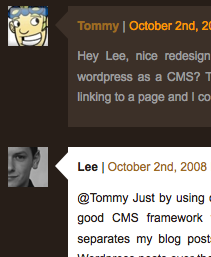

Thanks to Matt Cutts for this hack.

Archive dropdown box

After a year or more of blogging your archive list can get pretty long so shorten it down with a dropdown box.
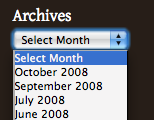
<select name="archive-dropdown" onchange='document.location.href=this.options[this.selectedIndex].value;'>
<option value=""><?php echo attribute_escape(__('Select Month')); ?></option>
<?php wp_get_archives('type=monthly&format=option&show_post_count=0'); ?> </select>

Further reading

Hopefully there’s a few useful tips in there that will save you having to figure them out for yourself. I recommend checking out the links below for further Wordpress theme tips.

Lee Munroe
About the author

Hi I'm Lee, a freelance web designer and masters student from Belfast Northern Ireland. Like this article? Feel free to follow me on Twitter.

Tags:

Popular Articles

Comments

Add a comment
  1. Gravatar

    Some good tips there Mr Munroe. Busy putting together a wordpress theme as we speak so some of these hacks will come in handy!

    Keep up the good work :)

  2. Gravatar

    I have tons of bookmarks with posts like this. But, you’ve got some tips that I didn’t see before. Thanks.

  3. Gravatar

    Awesome list. I was just looking last night for a way to disable the full-size image resizing issue - timely! Thanks!

  4. Gravatar

    Great list, indeed. A few suggested improvements though, if I may:

    For full sized images:
    Insert the following into your theme’s functions.php file —
    $content_width = 500;
    $GLOBALS['content_width'] = 500;

    Just change the 500 to the width of your content area. That way, images won’t be too big or too small. Inserting full sized images could very well break your layout so you need to limit them to something. This method lets you do just that.

    Unique Category Single Page
    The method you outlined here does indeed work, but there is an easier and far more efficient way to do it, thanks to a reader from my blog who informed me –
    http://www.nathanrice.net/blog/wordpress-single-post-templates/

    Hope that helps everyone!

  5. Gravatar

    Nice one, Lee.

    Styling the ‘read more’ tag is something often neglected.

    Stumbled!

  6. Gravatar

    @Nathan That unique category single page hack is very good indeed! (
    http://www.nathanrice.net/blog/wordpress-single-post-templates/)
    It’s strange how this isn’t supported by default. Thanks for sharing.

  7. Gravatar

    Great article. I really dig your theme here. Great use of browns. I don’t think we see enough brown on the internet. Good stuff.

  8. Gravatar

    Hi..all of this is really great.. but can i ask you a question about the customization of read more.. how can i change it to an image as a button?

  9. Gravatar

    @zul Instead of inserting ‘Read this article’ you can insert an img tag <img src="someimage.gif">

    Read more about it here http://codex.wordpress.org/Customizing_the_Read_More

  10. Gravatar

    hi lee.. i try it before but i can’t make it.. there’s no image displayed when i put this , but when i put this <img src=”/images/myimage.gif” alt=”" /> .. there’s an error appear.. can u help me solve this problem?

  11. Gravatar

    @zul can you direct me to an example page so I can take a look? I’m assuming you’ve put the image that you want to use in your images folder?

    Also remember how to reference images in your theme folder:
    <img src="<?php bloginfo('template_directory'); ?>/images/myimage.gif" alt="" />

  12. Gravatar

    Really great article, thought I’d add my 2 cents. I have recently written an article about design inspiration, which I thought would marry up with this on quite well

    you can find it @ http://www.mildfuzz.com/?p=30

    Great work and great blog Lee

  13. Gravatar

    i want to share my free wordpress theme here.

    Preview:
    http://www.elegantthemes.com/preview/eVid/

    Download:
    http://www.sendspace.com/file/6uv0n2

  14. Gravatar

    Hey, great post! Thanks for all these hacks, but I’m wondering how did you make that all your Pages has different layout. For example ‘Profile’ - it isn’t post, right? And main page has completely different layout. Could you describe these hints, please?

  15. Gravatar

    Oh man.. disregard my question. I’ve read I think 10 different ways to do this(some of them are really hard and didn’t worked) and found one simple solution - the templates! I bet you using exactly this way to do this! :)

  16. Gravatar

    @Vanilla-man: Glad you were able to figure it out. Yes, templates for specific pages. Take a look at http://codex.wordpress.org/Pages#Creating_Your_Own_Page_Templates if you haven’t already

  17. Gravatar

    This is a very useful information for anyone who want to make a custom layout for there blog.

Add a comment